SHEETOMATIC · GETTING STARTED
Your team’s first day with Tasks
A step-by-step guide from secure sign-in to your first completed task. Use this after your workspace activation is confirmed.
WhatsApp + Portal: five-step visual guide
Follow the numbered arrows and highlighted controls. These are illustrative screens, not screenshots of your account. WhatsApp commands and confirmation screens depend on your connected integration; use the portal instructions below if a feature is unavailable.
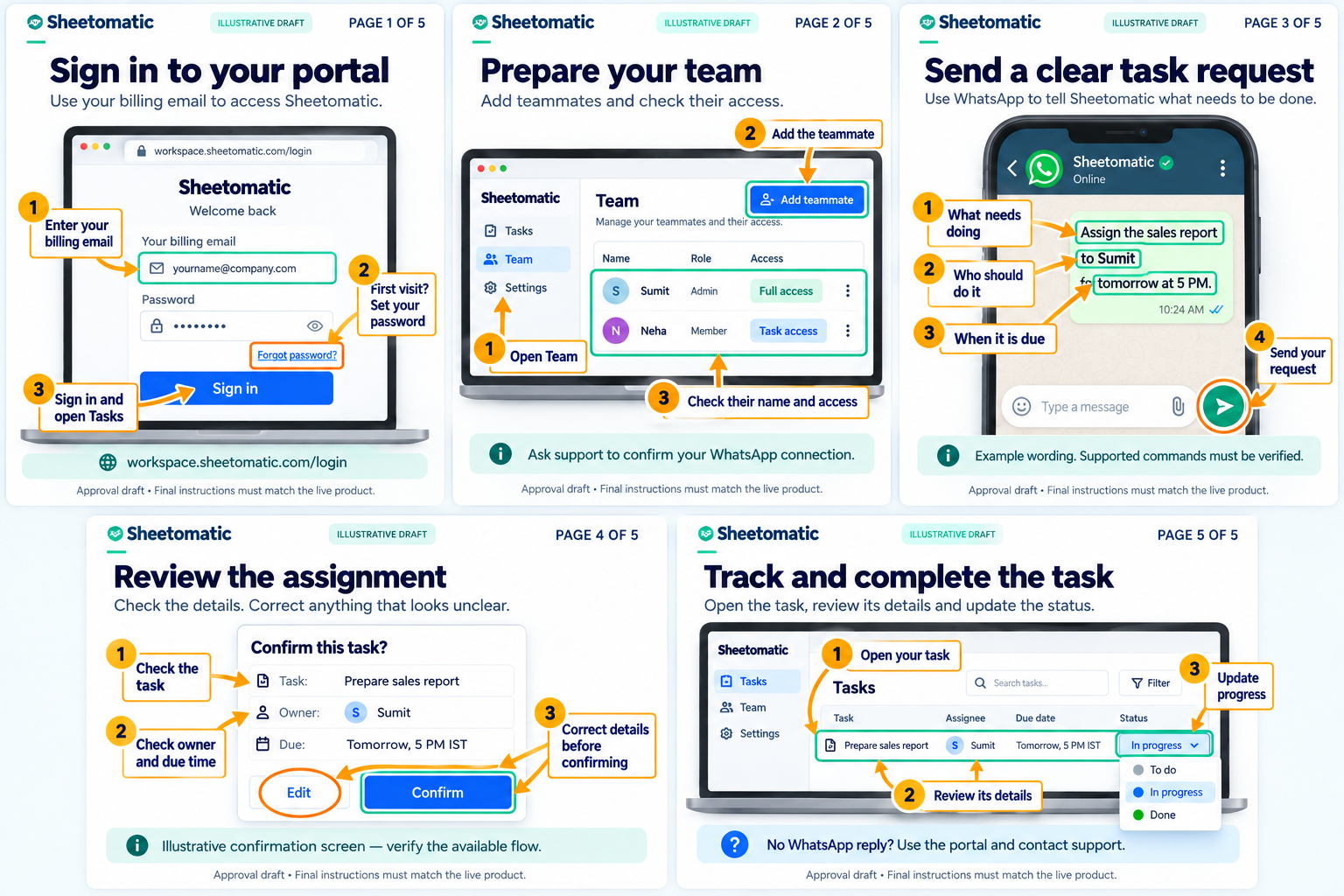 Download visual guide
Sign in securely
- Use the email address supplied at checkout. Payment confirmation and account access are separate checks.
- If you do not have a password, use Forgot password to request a secure email link. Never share your password or OTP.
- Select the workspace named in your activation confirmation. If activation is pending, contact support with your order reference—do not pay again.
Review your workspace
- Check the selected workspace and business details before adding your team.
- Confirm your purchased user allowance and billing term. Monthly purchases have a minimum of eight billed users; annual purchases use the selected user count.
- Access to unrelated products and third-party WhatsApp usage is not included automatically.
Add your team
- As the workspace owner, add your colleagues using their own email addresses and correct phone numbers.
- Give each person only the role and module access they need. Do not share one owner login across your team.
- Ask each colleague to sign in and confirm they can see the correct workspace. Stay within your purchased seat allowance.
Create your first task
- Enter a clear task title and description, then select the responsible team member or members.
- Set the priority and due date/time. The task form uses IST; confirm the displayed time before saving.
- For repeated work, review the recurrence settings. Check notification availability before choosing email or WhatsApp reminders.
- Assign a harmless internal task first and confirm it appears on the team board.
Work through the day
- Team members open their daily tasks, review the instructions and update their work using the available task actions.
- Add the requested evidence or notes where applicable. If verification is required, the verifier must review the work before treating it as complete.
- Use the task’s request options when a deadline or assignment needs review instead of creating duplicate tasks.
Review progress
- Owners and managers use the team board to review status, assignees, overdue work and completed tasks.
- Check the filters and selected workspace before concluding that a task is missing. Staff may see their personal task view instead.
- Review progress regularly and keep team access up to date when colleagues join or leave.
WhatsApp and troubleshooting
WhatsApp task notifications require a configured integration, a valid recipient number and applicable consent/template or conversation-window rules. Buying Tasks alone does not configure a new WhatsApp API account.
Payment succeeded but access is missing
Keep your order reference, check your confirmation email and selected workspace, then contact support. Do not make a second payment to resolve an activation delay.
No setup or password email
Check spam and the checkout email address. Request a fresh link from Forgot password. Never send support your password, OTP or card details.
No WhatsApp notification
Check the integration warning on Create task and the recipient’s phone number. A sent message is not proof of delivery. Contact support if configuration or an approved message template is missing.
Contact support · Include your order reference, not payment credentials.